Open a Raspberry Pi SD card on a Mac
A Mac shows only the card's small bootfs partition, which is FAT. The system and your files are on rootfs, which is ext4, and macOS can't read ext4. Extent (macOS 27, Apple silicon) mounts rootfs in the Finder: free to read, writable after a one-time purchase.
Last checked · Extent needs macOS 27 or later on a Mac with Apple silicon.
bootfs and rootfs: why only one shows up
A Raspberry Pi OS card holds two partitions. The first, bootfs, is a small FAT32 partition with the firmware, the kernel and the boot settings; on the running Pi it is mounted at /boot/firmware (before Bookworm, at /boot). The second, rootfs, is ext4 and holds everything else: the system, the programs, and your home folder.
macOS reads FAT, so bootfs mounts the moment you insert the card. It has no ext4 driver, so rootfs simply doesn't appear – without a word, because macOS complains only about a disk on which it can mount nothing at all.
A card or drive with only a Linux partition on it – a USB data drive from a Pi, say – does bring up “The disk you attached was not readable by this computer”. Don't click Initialize: here's what the message means and what to do instead.
| Partition | Label | File system | On the Pi | On a Mac by itself | With Extent |
|---|---|---|---|---|---|
| 1 | bootfs | FAT32, 512 MiB | /boot/firmware | Mounts, read and write | The same: macOS handles it |
| 2 | rootfs | ext4 | / | Doesn't appear | Mounts in the Finder; reading free, writing after a one-time purchase |
Raspberry Pi OS formats rootfs as ordinary ext4 with a journal and extents; its image builder turns off only the 64bit and huge_file features. That is ext4 Extent reads, and writes once writing is unlocked.
Where things are on the card
| What | Where | Partition |
|---|---|---|
| Boot settings | config.txt, cmdline.txt | bootfs |
| Settings from Raspberry Pi Imager (images since November 2025) | user-data, network-config, meta-data – read by cloud-init at first boot | bootfs |
| SSH, switched on before first boot | An empty file named ssh | bootfs |
| Your files | /home/<username> – the name chosen in Imager; there's no default “pi” user since 2022 | rootfs |
| The Pi's name | /etc/hostname | rootfs |
| Wi-Fi and network settings | /etc/NetworkManager/system-connections/; on Trixie, what Imager or cloud-init set up is in /etc/netplan/ | rootfs |
| Scheduled jobs | /var/spool/cron/crontabs/ | rootfs |
| Logs | /var/log. On Trixie the system journal is kept in memory and isn't on the card, unless persistent logging was turned on in raspi-config – then /var/log/journal | rootfs |
Old guides that put a wpa_supplicant.conf on bootfs to set up Wi-Fi no longer apply: Raspberry Pi OS stopped reading it with Bookworm.
Reading the card on a Mac
Shut the Pi down, then take the card out
sudo poweroff, or Shutdown in the desktop's menu, and wait until it has stopped. Raspberry Pi warns that cutting the power can corrupt the card. If the Pi won't start any more, just take the card out – see “A card pulled out without shutting down” below.Install Extent and turn on its extension, once
Extent is free on the Mac App Store. Turn it on in System Settings › General › Login Items & Extensions › File System Extensions; the banner in Extent's window opens that pane for you.
Insert the card
In the Mac's SD slot or a USB card reader. bootfs mounts as it always did, and rootfs appears beside it in the Finder, read-only. If rootfs doesn't appear, the card probably went in before the extension was on: eject it and insert it again.
Copy what you need, then eject
Drag files out as from any disk. Eject the card in the Finder before you take it out.
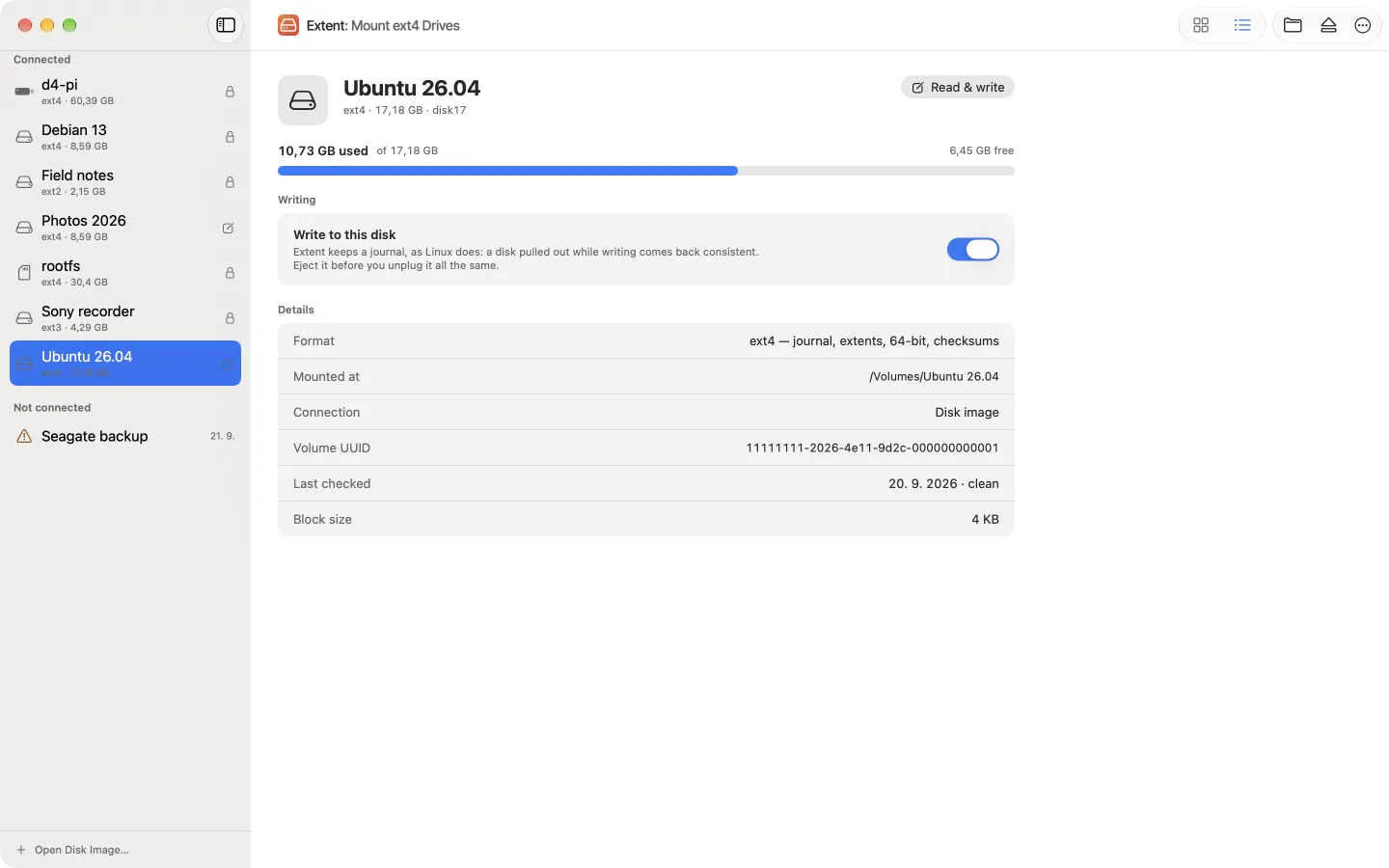
rootfs – with what each one allows.Editing files on the card
Files on bootfs – config.txt, cmdline.txt, an ssh file – need nothing extra: macOS writes FAT itself. Files on rootfs need writing turned on:
Unlock writing
A one-time purchase, under Extent › Unlock Writing…. It covers every disk and every Mac signed in to your Apple Account.
Turn it on for the card
Select rootfs in Extent's window and turn on “Write to this disk” in its details. Writing is a switch per disk, so a card you only read can't be changed by accident.
Eject the card and insert it again
A file system is mounted either read-only or read and write; the switch takes effect the next time the card is connected.
Edit, then eject
Save your changes as on any disk, and eject before you take the card out. Every change goes through rootfs's journal, as on Linux.
- A new file or folder takes the owner and group of the folder it's created in, so a file you add to
/home/<username>belongs to that user on the Pi – not to a user ID that exists only on your Mac. - macOS keeps a folder of its own,
.fseventsd, on any disk it writes to, and the Finder may leave.DS_Storefiles in folders you open. Linux ignores both.
A card pulled out without shutting down
Linux writes every change to rootfs's journal first and moves it to its final place afterwards. A card taken out of a running Pi – or one whose Pi lost power – can hold changes that reached the journal and never their final place; the file system is marked as needing recovery. Linux finishes them, replaying the journal, the next time it mounts the card.
Software that reads the card elsewhere has to replay the journal too, or it shows the files as they were before those changes. Extent does:
- Read-only, as a card mounts by default, Extent replays the journal in memory: you see the files as Linux will once it has finished, and nothing is written to the card. Its window says “Linux didn't finish writing to this disk – it wasn't ejected properly.”
- With writing on, Extent replays the journal onto the card as it mounts it, as Linux would at the next boot, and finishes what the interruption left half-deleted.
- If the journal itself can't be read, Extent says the last changes made on Linux may be missing. If Linux had recorded damage on the card, Extent mounts it read-only and won't write to it until it has been checked with
e2fsck -fon Linux.
Extent's replay was tested on a real card pulled out of a running Pi, with 274 transactions waiting in its journal.
A card that has started to fail – a Pi that keeps crashing, read errors – is best copied to an image once, before anything else, and the image opened instead. See the next section.
Back up the card as an .img, and open it
A copy of the whole card, both partitions, in one file the size of the card. In the Terminal:
Find the card
diskutil listshows it as, say,/dev/disk4: a disk the size of the card, with aWindows_FAT_32partition named bootfs and aLinuxpartition. Check the number twice.Unmount its partitions, without ejecting
diskutil unmountDisk /dev/disk4Copy the card into a file
sudo dd if=/dev/rdisk4 of=$HOME/Desktop/raspberrypi.img bs=4m status=progress–rdisk4is the same card, read as a raw device. It takes as long as reading the whole card.Eject the card
diskutil eject /dev/disk4Open the image
In Extent, File › Open Disk Image…, or drop the
.imgon its window. macOS attaches it like a card: bootfs mounts by itself and rootfs through Extent, with the same folders as on the Pi.
diskutil list
diskutil unmountDisk /dev/disk4
sudo dd if=/dev/rdisk4 of=$HOME/Desktop/raspberrypi.img bs=4m status=progress
diskutil eject /dev/disk4
The image's rootfs has the card's file system UUID, and Extent keeps the writing switch per file system, so with writing on for the card the image can mount writable too. Turn it off in the image's details to keep the backup as it was.
On the Pi itself, Raspberry Pi OS with the desktop has SD Card Copier, which clones the card to another card or USB drive.
What Extent doesn't do
- It doesn't write Raspberry Pi OS to a card or format one – Raspberry Pi Imager does.
- It doesn't repair a damaged rootfs. That is
e2fsck's job, on Linux – another Pi with a USB card reader will do; when a card needs it, Extent says so and gives you the command. - It leaves bootfs to macOS, which reads and writes FAT itself.
- It runs on macOS 27 or later on a Mac with Apple silicon only. For other Macs and other ways to read ext4, see how to read and write ext4 on a Mac.
Frequently asked questions
Why does my Mac only show the boot partition of my Raspberry Pi's SD card?
Because the boot partition, bootfs, is FAT, which macOS reads, and the partition with the system and your files, rootfs, is ext4, which it doesn't. Extent mounts rootfs in the Finder on macOS 27.
Can I switch on SSH or set up Wi-Fi for a Pi from a Mac?
Yes, on bootfs, which macOS writes without extra software. An empty file named ssh switches SSH on. Raspberry Pi Imager writes user, Wi-Fi and SSH settings into the user-data and network-config files that cloud-init reads at first boot. A wpa_supplicant.conf no longer works since Bookworm.
Can I get my files off a Raspberry Pi that won't boot?
Yes. Take the card out and insert it in the Mac: Extent mounts rootfs read-only for free, with the journal replayed in memory, so your home folder is at /home/<username>. If the card is failing, copy it to an image first and open the image.
Is it safe to write to a Pi's SD card from a Mac?
With Extent, writes go through the card's journal, as on Linux, so a card pulled out mid-write comes back consistent. Writing stays off until you turn it on for that card, and a card on which Linux recorded damage stays read-only. Eject before you take the card out.
How do I back up a Raspberry Pi SD card on a Mac?
Copy the whole card to an image with dd: find it with diskutil list, unmount it with diskutil unmountDisk, then sudo dd if=/dev/rdiskN of=raspberrypi.img bs=4m status=progress. Extent opens the image like the card itself.
Your Pi's card, in the Finder.
Extent mounts the ext4 partition of a Raspberry Pi card on macOS 27. Reading is free; writing to it is a one-time purchase.
Sources
Facts on this page were checked against these pages on 2 November 2026.
- Raspberry Pi documentation: configuration (the boot folder, networking, raspi-config)
- Raspberry Pi documentation: getting started (ssh, userconf.txt, wpa_supplicant.conf)
- Raspberry Pi documentation: power supplies
- pi-gen: how the Raspberry Pi OS image partitions and formats the card
- pi-gen: fstab of Raspberry Pi OS
- Raspberry Pi: cloud-init on Raspberry Pi OS (November 2025)
- Raspberry Pi: the default “pi” user removed (April 2022)
- raspberrypi-sys-mods: the journal kept in memory on Trixie
- Debian: hier(7), crontab(1), hostname(5)
- Apple: dd(1) on macOS
- Linux kernel: the ext4 journal
- Extent on the Mac App Store